Project: Arduino Nano 33 IoT – Salesforce Integration for Temperature Monitoring
The primary objective of this project is to establish a seamless integration between an Arduino Nano 33 IoT microcontroller and Salesforce CRM. The Arduino device will capture real-time temperature data and transmit it securely to Salesforce using a Connected App. Temperature values will be stored in a custom Salesforce object (Temprature__c), updated automatically at one-minute intervals. Arduino makes a REST Call to Salesforce and sends back success or failure. On success the code would create a record in salesforce of the current temperature sensor in C.
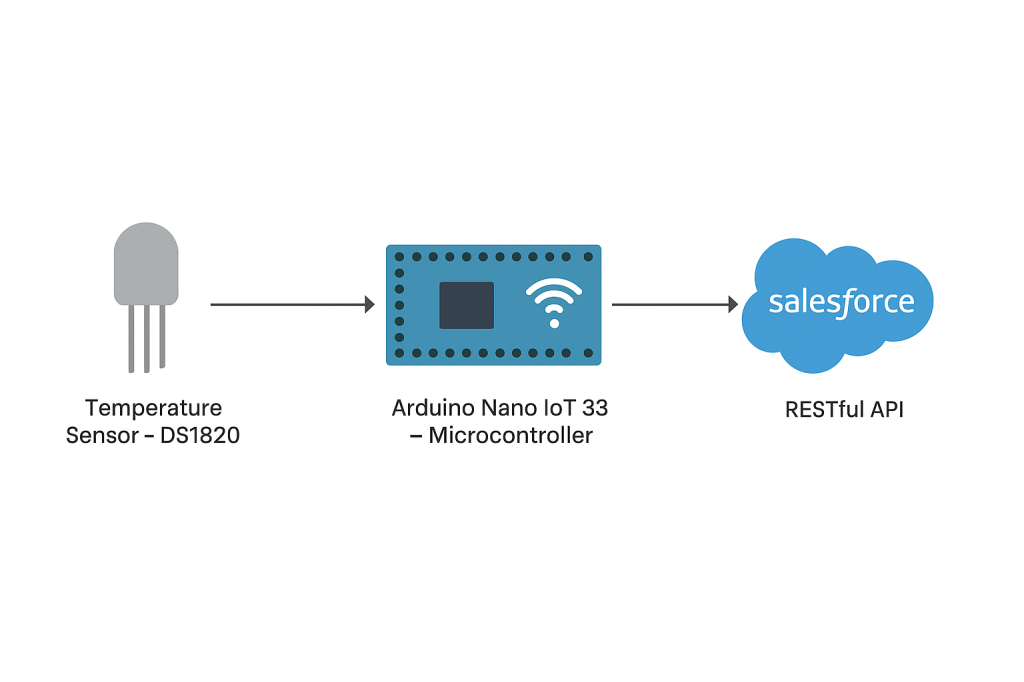
Hardware: Arduino Nano IOT 33 – Microcontroller, Temperature Sensor – DS18B20 ( Many versions are available on Ebay/Amazon, Breadboard, Connecting wires
Software: Arduino IDE, Libraries for DS18B20, Salesforce – with Admin access or developer Sandbox.
Salesforce Setup:
- Create a connected App (As of Summer’25): Setup>App Manager> Click Button “New External Client App” – Setup Oauth credentials
- Test connection with Postman if necessary.
Hardware Connection/Setup:
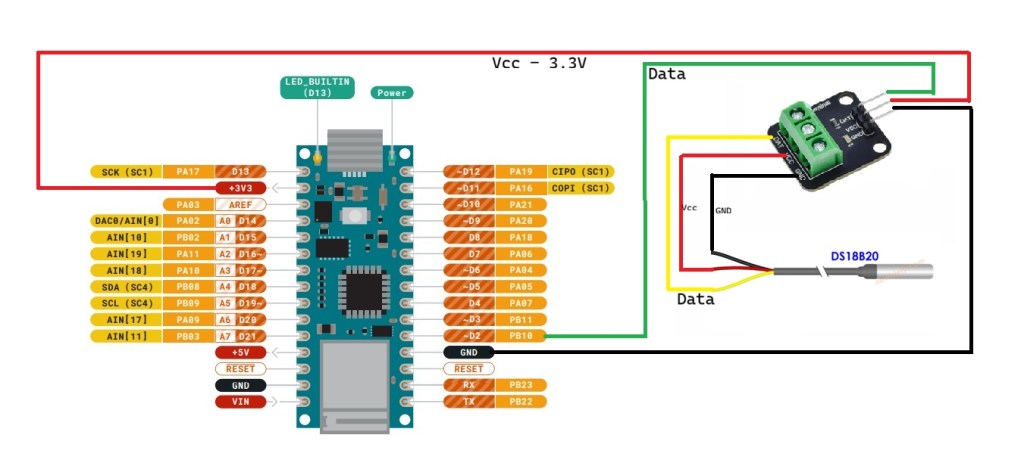
DS18B20 to Arduino Nano 33
We can power DS18B20 using Vcc ( Vout) = 3.3 from Arduino as it consumes less than 50mA. If using a different power supply do not forget to connect grounds together else the results will be unpredictable,
Arduino Code: Here is the code for the project. You can use any other sensor to update salesforce. I had to use the credential flow instead of device flow as I had issues with it. Credential flows are not very safe!
/*
 * Author:        Aadi Yemul
 * Location:      Redmond, WA
 * Date:          September 3, 2024
 *
 * Purpose:
 * This program connects an Arduino Nano 33 IoT to Salesforce via a Connected App.
 * It captures temperature readings from a DS18B20 sensor and updates them
 * in a Salesforce custom object (Temperature__c) every minute over Wi-Fi.
 *
 * The program handles:
 * - Wi-Fi connection
 * - OAuth2 authentication with Salesforce
 * - Automatic data posting to Salesforce REST API
 * - Retry logic for network or authentication failures
 */

#include <SPI.h>
#include <WiFiNINA.h>
#include <ArduinoHttpClient.h>
#include <ArduinoJson.h>
#include <OneWire.h>
#include <DallasTemperature.h>

#define SENSOR_PIN  2 // The Arduino Nano 33 IoT pin D2 connected to DS18B20 sensor's DATA pin

OneWire oneWire(SENSOR_PIN);
DallasTemperature DS18B20(&oneWire);

float temperature_C; // temperature in Celsius
float temperature_F; // temperature in Fahrenheit

// ---------------- WiFi Credentials ----------------
char ssid[] = "YOUR_WIFI_SSID";       // Replace with your WiFi SSID
char pass[] = "YOUR_WIFI_PASSWORD";   // Replace with your WiFi Password

// ---------------- Salesforce OAuth Credentials ----------------
const char* sf_host     = "YOUR_SF_DOMAIN.my.salesforce.com";
String client_id        = "YOUR_CONNECTED_APP_CLIENT_ID";
String client_secret    = "YOUR_CONNECTED_APP_CLIENT_SECRET";
String username         = "YOUR_SF_USERNAME";
String password         = "YOUR_SF_PASSWORD+SECURITY_TOKEN";  // password + token

// ---------------- Global Variables ----------------
String accessToken;
String instanceHost;
unsigned long lastAttemptTime = 0;
const unsigned long retryInterval = 60000; // 1 min

// ---------------- Network Clients ----------------
WiFiSSLClient wifi;
HttpClient client(wifi, sf_host, 443);

// ==================================================
// Function: getAccessToken
// Purpose: Logs into Salesforce via OAuth2
// ==================================================
void getAccessToken() {
  Serial.println("Requesting Salesforce Access Token...");

  String postData = "grant_type=password";
  postData += "&client_id=" + client_id;
  postData += "&client_secret=" + client_secret;
  postData += "&username=" + username;
  postData += "&password=" + password;

  client.beginRequest();
  client.post("/services/oauth2/token");
  client.sendHeader("Content-Type", "application/x-www-form-urlencoded");
  client.sendHeader("Content-Length", postData.length());
  client.beginBody();
  client.print(postData);
  client.endRequest();

  int statusCode = client.responseStatusCode();
  String response = client.responseBody();

  Serial.println("Status: " + String(statusCode));
  Serial.println("Response: " + response);

  StaticJsonDocument<1024> doc;
  DeserializationError error = deserializeJson(doc, response);
  if (error) {
    Serial.println("JSON parse failed!");
    return;
  }

  accessToken = doc["access_token"].as<String>();
  String instanceUrl = doc["instance_url"].as<String>();

  int start = instanceUrl.indexOf("//") + 2;
  instanceHost = instanceUrl.substring(start);
}

// ==================================================
// Function: createTemperatureEntry
// Purpose: Creates a new Temperature__c record in Salesforce
// ==================================================
bool createTemperatureEntry() {
  if (instanceHost.length() == 0) {
    Serial.println("No instance host available!");
    return false;
  }

  HttpClient apiClient(wifi, instanceHost.c_str(), 443);
  String endpoint = "/services/data/v58.0/sobjects/Temperature__c/";
//Custom object API name. remember two underscores __C

  StaticJsonDocument<200> doc;
  DS18B20.requestTemperatures();       // send the command to get temperatures
  temperature_C = DS18B20.getTempCByIndex(0);
  doc["Name"] = "Arduino Nano 33 IoT";
  doc["Current_Temperature__c"] = temperature_C;
  String jsonBody;
  serializeJson(doc, jsonBody);

  apiClient.beginRequest();
  apiClient.post(endpoint);
  apiClient.sendHeader("Content-Type", "application/json");
  apiClient.sendHeader("Authorization", "Bearer " + accessToken);
  apiClient.sendHeader("Content-Length", jsonBody.length());
  apiClient.beginBody();
  apiClient.print(jsonBody);
  apiClient.endRequest();

  int statusCode = apiClient.responseStatusCode();
  String response = apiClient.responseBody();

  Serial.print("Status: ");
  Serial.println(statusCode);
  Serial.print("Response: ");
  Serial.println(response);

  return (statusCode == 201);
}

// ==================================================
// Setup Function
// ==================================================
void setup() {
  Serial.begin(115200);
  while (!Serial);
  DS18B20.begin();
  Serial.print("Connecting to WiFi...");
  while (WiFi.begin(ssid, pass) != WL_CONNECTED) {
    delay(1000);
    Serial.print(".");
  }
  Serial.println("Connected!");

  getAccessToken();

  if (accessToken.length() > 0) {
    if (!createTemperatureEntry()) {
      Serial.println("Initial create failed, will retry in 1 minute...");
    }
  } else {
    Serial.println("Failed to get Access Token at startup.");
  }

  lastAttemptTime = millis();
}

// ==================================================
// Loop Function (retry logic every 1 min)
// ==================================================
void loop() {
  if (millis() - lastAttemptTime >= retryInterval) {
    lastAttemptTime = millis();

    if (WiFi.status() != WL_CONNECTED) {
      Serial.println("WiFi disconnected, reconnecting...");
      while (WiFi.begin(ssid, pass) != WL_CONNECTED) {
        delay(1000);
        Serial.print(".");
      }
      Serial.println("Reconnected!");
    }

    if (accessToken.length() > 0) {
      Serial.println("Retrying Salesforce temperature entry...");
      if (!createTemperatureEntry()) {
        Serial.println("Retry failed. Will try again in 1 minute...");
      }
    } else {
      Serial.println("No access token available. Trying to fetch again...");
      getAccessToken();
    }
  }
}
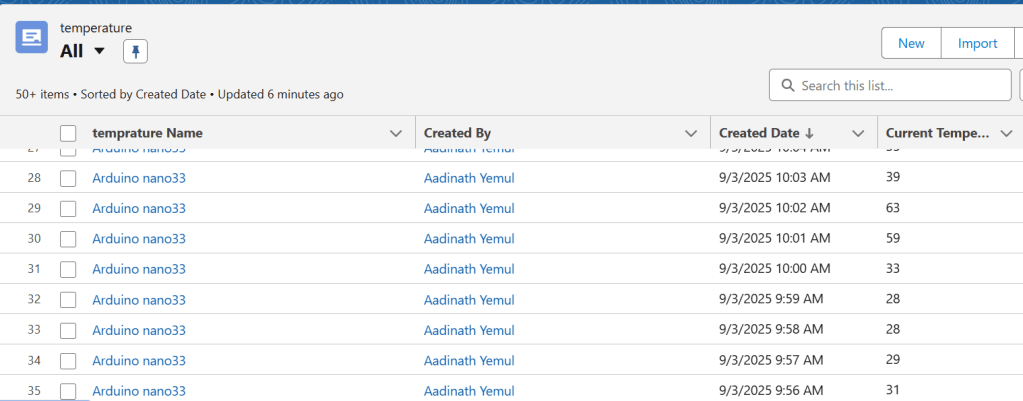
Output: You can use a list view or a report to look at your output.
 aadiyemul